Windows Server 2008 R2安装IIS

时间:2026-02-12 14:14:59

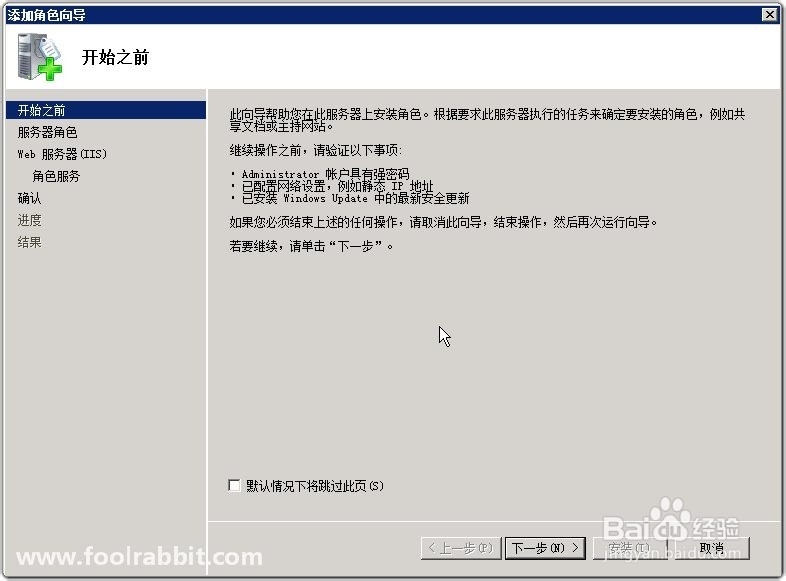
1、在"服务器管理器"中选择"添加角色"。
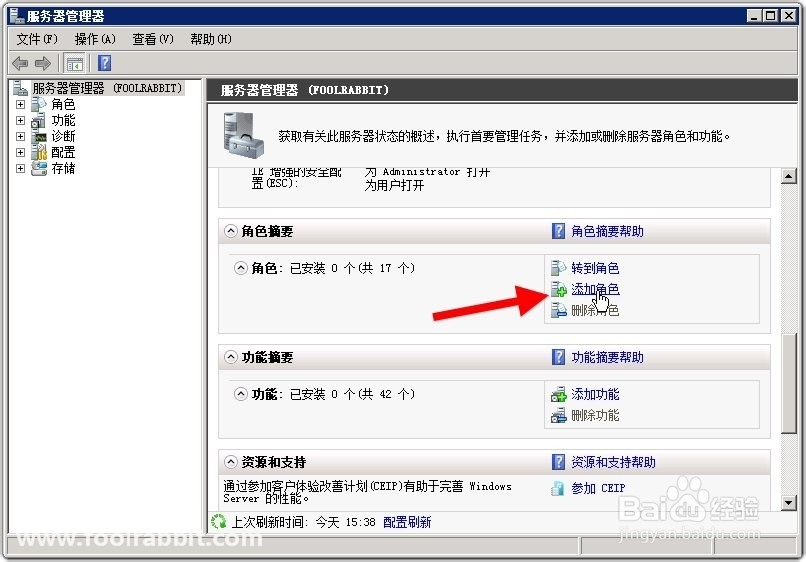
Windows Server 2008 R2安装IIS

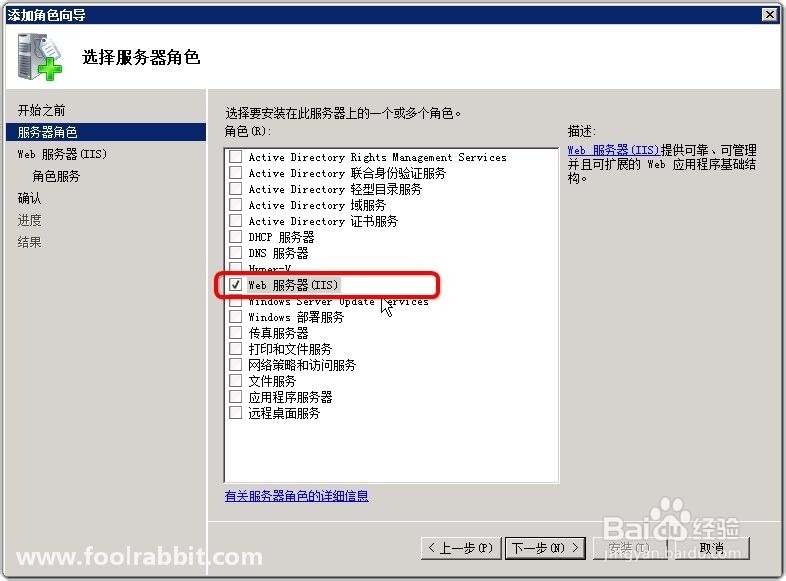
2、在"服务器角色"步骤选择"Web 服务器(IIS)"。

Windows Server 2008 R2安装IIS

Windows Server 2008 R2安装IIS

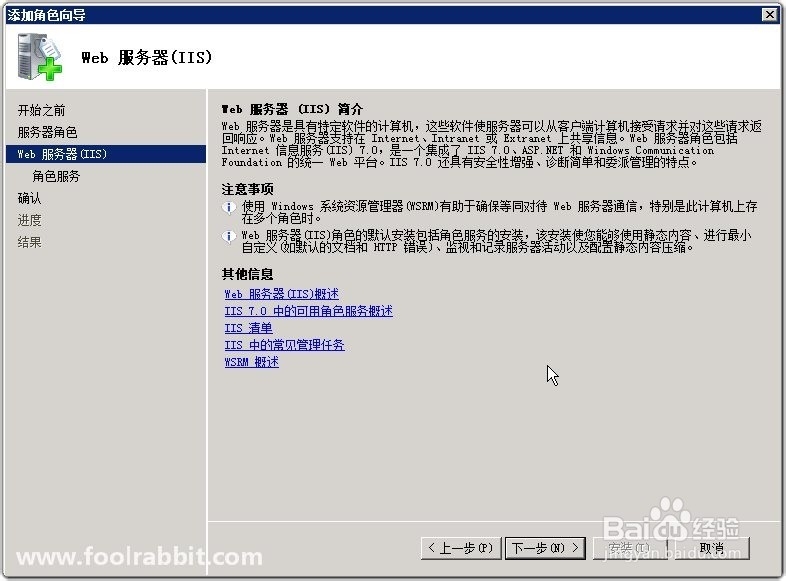
3、"角色服务"中使用默认选择项即可。

Windows Server 2008 R2安装IIS

Windows Server 2008 R2安装IIS

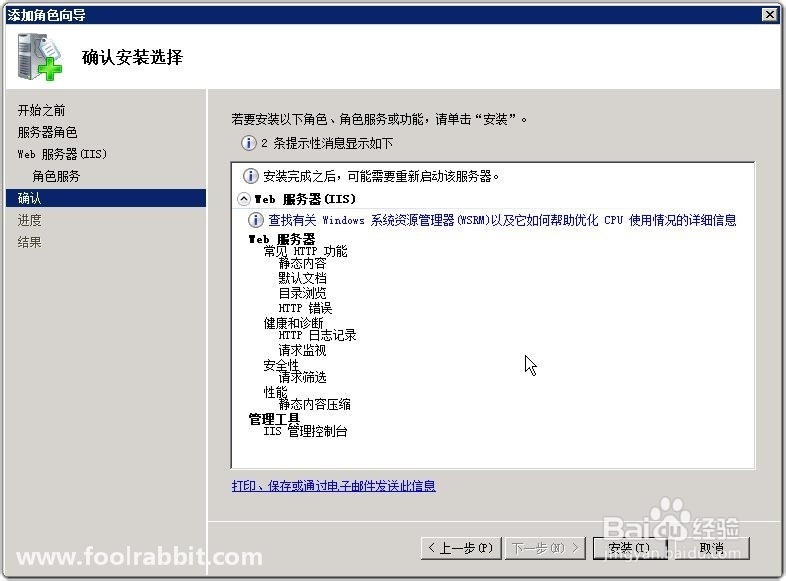
4、进行下一步,下一步安装。

Windows Server 2008 R2安装IIS

Windows Server 2008 R2安装IIS

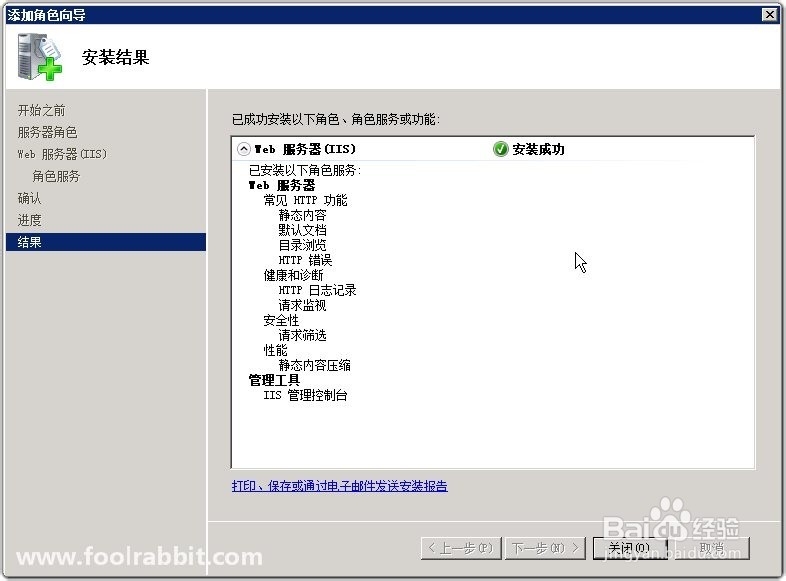
5、显示安装结果。

Windows Server 2008 R2安装IIS

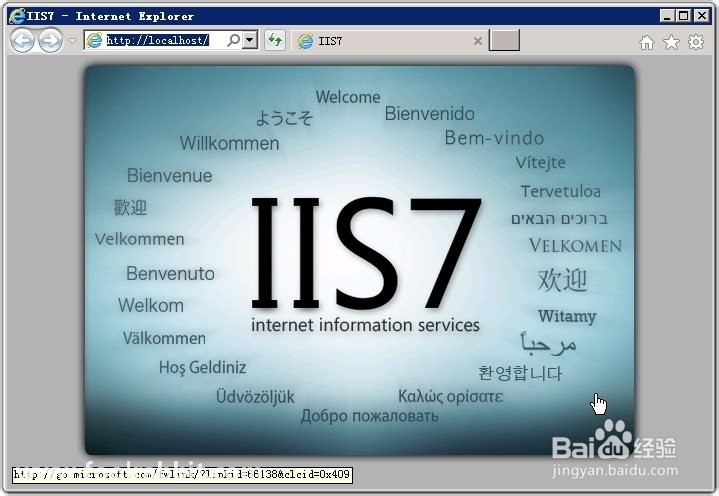
6、浏览默认网站,出现IIS7欢迎界面即表示安装成功了。

Windows Server 2008 R2安装IIS

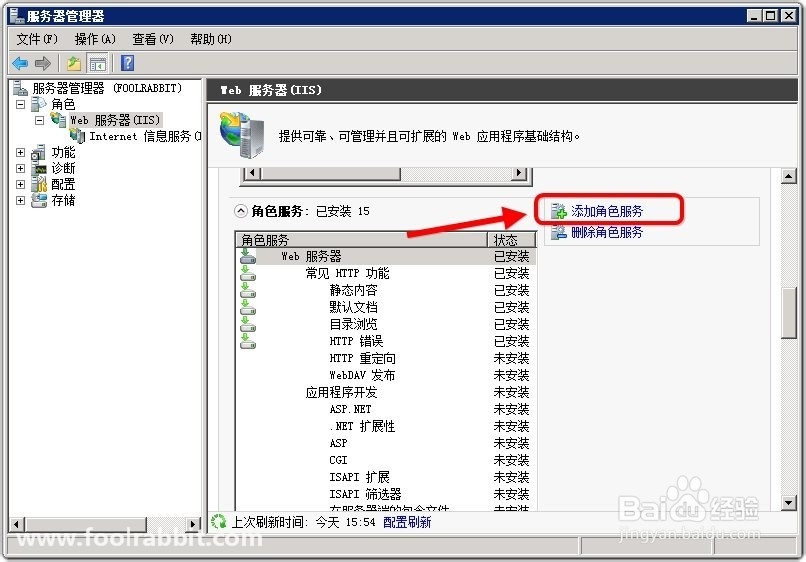
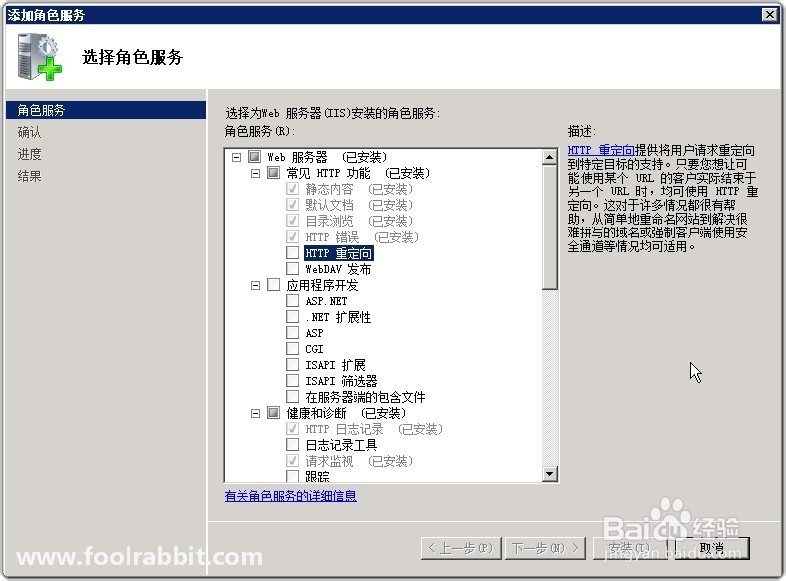
7、如需添加其他角色服务,对web 服务器进行添加角色服务即可。

Windows Server 2008 R2安装IIS

Windows Server 2008 R2安装IIS

1、感谢您把本经验阅读完,如果有写的不好的地方,请指出以便纠正,以免误人子弟。

如果觉得本经验有用,浪费您几秒钟的时间在页面左下方点个赞。在页面顶部/经验底部投个票。

您的支持是我不断写经验的动力!

© 2026 小猪生活
信息来自网络 所有数据仅供参考
有疑问请联系站长 site.kefu@gmail.com